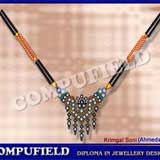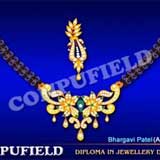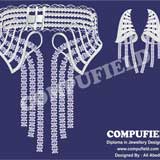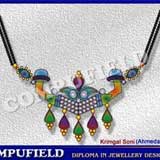

2D COMPUTER GENERATED JEWELLERY DESIGNING using
CorelDRAW and Photoshop |
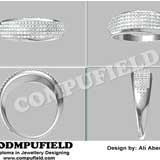
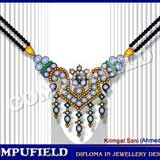
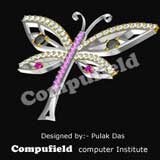
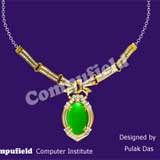
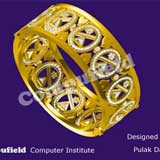
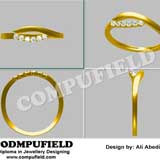
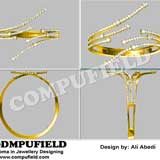
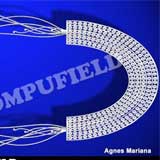
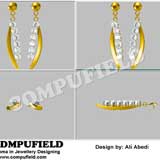
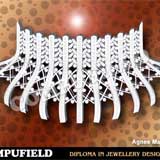
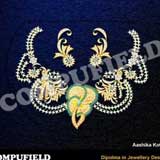
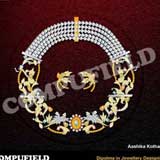
An introduction to the various software used for jewellery designing. Mastering the tools of the Coreldraw and Photoshop software.Use of different materials like silver, gold, coloured stones, precious gems etc. Designing bracelets, necklaces,brooches, earrings, rings.Creating you own signature line of jewellery designs. |
Mentioned above are the technical aspects of Jewellery Designing, the aesthetic aspects are introduced and fine tuned with every exercise the student does. Research for inspiration and converting inspiration to original ideas is the key to a successful jewellery design career and is emphasized at all stages. |
|
|
2D Computer Generated Jewellery Designing using CorelDRAW X4 |
This course begins from starting the CorelDraw Program and covers its powerful features used to create professional graphics. How to add basic drawing elements, and create different diamonds and precious stones, how to modify those elements and then edit and colour are covered in the exercises. You are then taken through some of the special effects that can be applied to them. The creative aspect of making bangles, rings, jewellery sets and other professional artwork is also covered. |
|
| |
|
| 1) |
How
to Start the CorelDRAW program |
| |
|
2) |
Introduction
to the CorelDRAW program, Menu bar & Drawing Toolbox |
| |
|
3) |
Overview
of Drawing tools |
| |
|
4) |
Editing
the object |
| |
|
5) |
Basic shapes |
| |
|
6) |
Shape Tools |
| |
|
7) |
Fountain fill |
|
|
| 8) |
Gold shading |
| |
 |
| |
|
| 9) |
Kundan |
| |
 |
| |
|
| 10) |
How to make Colored Stones |
| |
 |
| |
|
| 11) |
How
to make Diamond |
| |
 |
| |
|
| 12) |
How
to make Bagget |
| |
 |
| |
|
| |
|
| Lesson - 2 |
| |
|
| 13) |
How to make simple Rings |
| |
| a) Simple Ring - Design 1 |
| b) Simple Ring - Design 2 |
| c) Simple Ring - Design 3 |
|
| |
|
| Design 1 |
Design 2 |
Design 3 |
 |
 |
 |
|
| |
|
| |
|
| Exercise |
| |
Excercise
- Ia |
Excercise
- Ib |
 |
 |
|
|
| |
| |
| Lesson - 3 |
| |
|
| 14) |
Prong |
| |
| a) Prong settings |
 |
| |
| b) Prong Pave |
 |
|
| |
|
| 15) |
Pave settings |
| |
 |
| |
|
| 16) |
Channel settings |
| |
 |
| |
|
| 17) |
Flush settings |
| |
 |
| |
|
| 18) |
Invisible settings |
| |
 |
| |
|
| 19) |
Pressure settings |
| |
 |
| |
|
| 20) |
Bezel |
| |
| a) Bezel settings |
 |
| |
| b) Bezel Ring |
 |
|
| |
|
| |
|
| Lesson - 4 |
| |
|
| 21) |
Miscellaneous designs of Rings using different settings |
| |
|
| a) |
Design Ring - 1 |
| |
 |
| |
|
| b) |
Design Ring - 2 |
| |
 |
| |
|
| Lesson - 5 |
| |
|
| 22) |
Miscellaneous design of Pendants using different settings |
| |
|
| a) |
Design Pendant |
| |
 |
| |
|
| Lesson - 6 |
| |
|
| 23) |
Miscellaneous design of Earings using different settings |
| |
|
| |
Design Earing |
| |
 |
| |
|
| Lesson - 7 |
| |
|
| 24) |
Miscellaneous designs of Bracelets using different settings |
| |
|
| a) |
Design Bracelet - 1 |
| |
 |
| |
|
| b) |
Design Bracelet - 2 |
| |
 |
| |
|
| |
|
| Lesson - 8 |
| |
|
| 25) |
Miscellaneous design of Bangle using different settings |
| |
 |
| |
|
| |
|
| (Based on the above demos, please make the following exercises :) |
| |
|
Exercise
- a |
Exercise
- b |
Exercise -4c |
 |
|
|
|
|
| |
|
| Lesson - 9 |
| |
|
| 26 a) |
Design Jewellery set including Necklace, Earings, Ring |
| |
 |
| |
| b) |
Design a Necklace |
 |
| |
| |
2D Computer Generated Jewellery Designing Using Photoshop |
Adobe PhotoShop is an Image Processing software package. It enables you to present your jewellery designs with appropriate special effects like the glow of a diamond or light and shadow on gold, etc. You can also create a whole range of designs by modifying one design. Adobe Photoshop is acknowledged in professional fields as the cutting-edge Program, the final word in inspirational Designing. |
| |
|
| Phase I |
| 1) |
Introduction to the Photoshop program. |
| 2) |
Menu Bar and Selection Tools. |
3) |
Drawing & painting tools - Modify your ruby pendant into an emerald pendant. |
|
| |
| Phase II |
| 1) |
Image editing & manipulation - Create a set of rings, earrings and a bracelet to match with your necklace. |
| 2) |
Working with text - Let your presentation look professional with attractive titles. |
| 3) |
Working with layers - Easier handling of your images while editing. |
| |
|
| Phase III |
| 1) |
Uses of various tools - Retouch old jewellery
|
| 2) |
Working with images, channels & masks |
| 3) |
Saving and loading selections |
| 4) |
Using paths - Design a complete set of fashion jewellery |
| 5) |
Special effects on images - use Filters to make your designs alluring - Give a flare, give a glow and put the spotlight on your design! |
|
Click here for enlarged version of Thumbnail |
| |
| Phase IV |
| 1) |
Saving files with different extensions i.e. GIF, JPEG, PDF and other web supported formats |
| 2) |
Importing files from Coreldraw or any other applications |
| 3) |
Scanning images |
Original |
Modified |
 |
 |
|
|
Click here for enlarged version of Thumbnail |
| |
Illustrator is a vector graphics creation software for print media and web, allowing the user to produce World Class Illustrations with 16.7 million colors.
SALIENT FEATURES
- Creative tools for Print Media Output.
- Sophisticated Web Graphic Tools.
- Special Effects to Images.
- Versatile Transparency Capabilities
- Dynamic Media Projects
APPLICATIONS
- Complex and High Quality Output.
- Jewellery Designs
- High Quality Illustrations.
-
Jewellery Designer
-
Graphic Designer
|
| |